Admin: Kiosk Machines
Kiosk Machines is a section of the Admin Portal. It answers four questions about every physical kiosk:
- Which machine is it, and is it online?
- Who runs it, and which Shop does it belong to?
- How much money did players move on it?
- How much commission was paid for it?
This page shows each job step by step. The names in bold are the names on the screen.
The pictures use demo data. Names, codes, and amounts are examples.
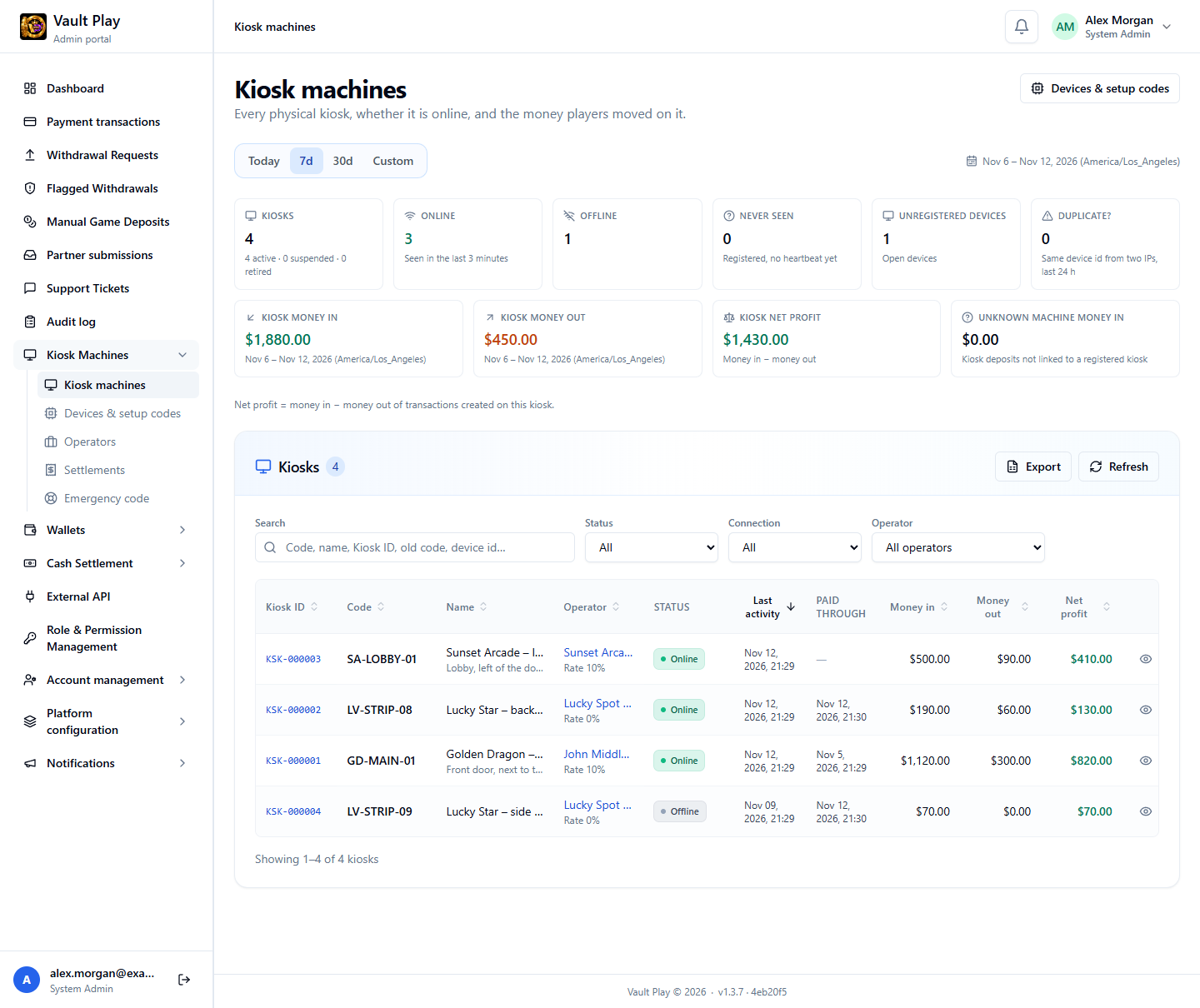
The menu
| Page | What it is for |
|---|---|
| Kiosk machines | Every kiosk, its status, its operator, and its money for the period you pick |
| Devices & setup codes | Machines that are not registered yet, and the one-time codes used to register them |
| Operators | The Shops, people, and companies that run kiosks |
| Settlements | Commission statements for an operator and a period |
| Emergency code | The 6-digit code a technician types on a kiosk |
Who can open it
Each page needs a permission. A System Admin sets permissions in Role & Permission Management.
| Permission | What it opens | Who has it by default |
|---|---|---|
| Kiosk Machine Management | Kiosk machines, Devices & setup codes, Operators | Finance Admin, Operation Admin |
| Kiosk settlements | Settlements | Finance Admin, Operation Admin |
| Kiosk emergency code | Emergency code | Operation Admin |
System Admin and Super Admin can open everything.
Words used on these pages
| Word | Meaning |
|---|---|
| Kiosk ID | The permanent number of a kiosk, like KSK-000003. It never changes |
| Kiosk Code | The short code staff give a kiosk, like SA-LOBBY-01. It can change. An old code stays reserved for the same kiosk |
| Name | A readable name, like "Sunset Arcade – lobby" |
| Device | The physical machine. Each machine with the kiosk app has its own device ID |
| Operator | Who runs the kiosk and receives commission: a Shop, a person, or a company |
| Linked shop | The Shop an operator stands for. This is what ties a kiosk to a Shop |
| Reference rate | A percentage shown as a suggestion in settlements. It never calculates a payout |
| Setup code | A one-time code that registers a machine as a kiosk. It works once, for 30 minutes |
| Emergency code | A 6-digit code that changes every 10 minutes. It opens the staff screens on a kiosk |
| Money in / Money out | Completed deposits and completed withdrawals made on the kiosk |
| Net profit | Money in minus money out |
Register a new kiosk
A machine with the kiosk app shows up in Admin by itself the first time it goes online. It is not a kiosk yet. Registering it takes one code from Admin and a few fields on the kiosk.
Step 1: Find the machine
Open Kiosk Machines → Devices & setup codes. The Unregistered tab lists machines that run the kiosk app but are not registered.
The Kiosk setup screen on the machine shows its device ID. Match the last characters with the list.
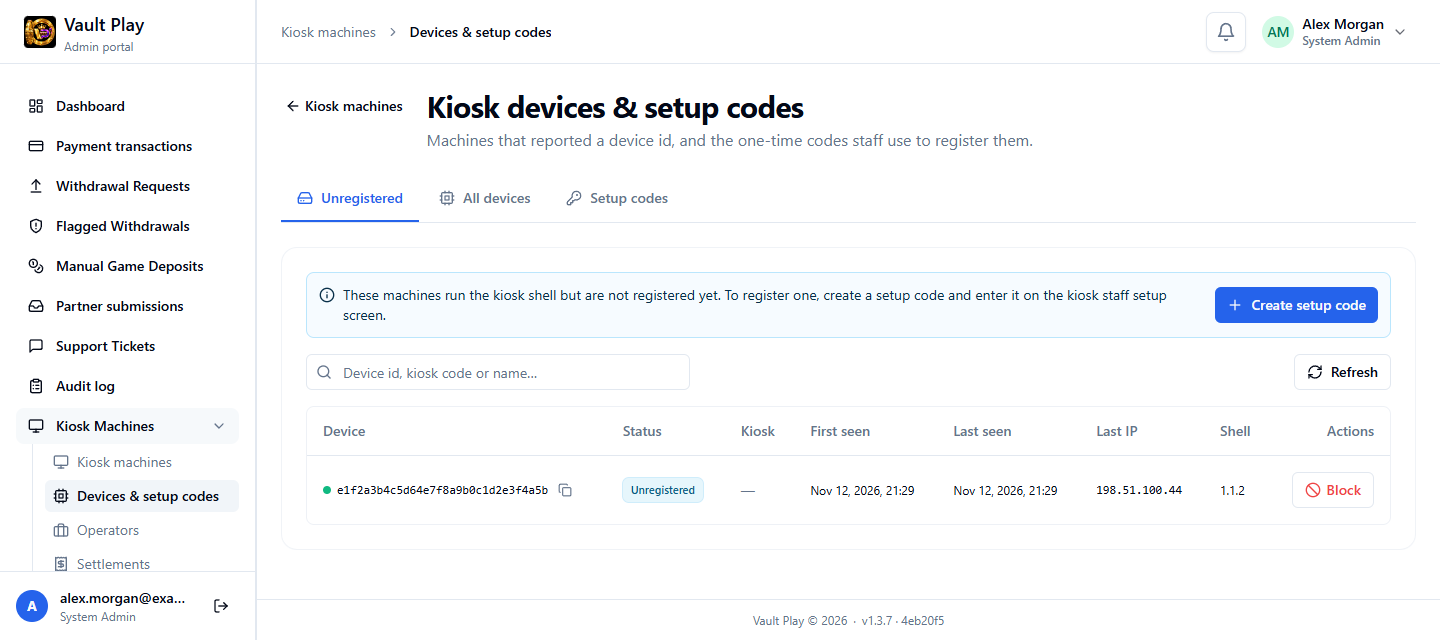
Step 2: Create a setup code
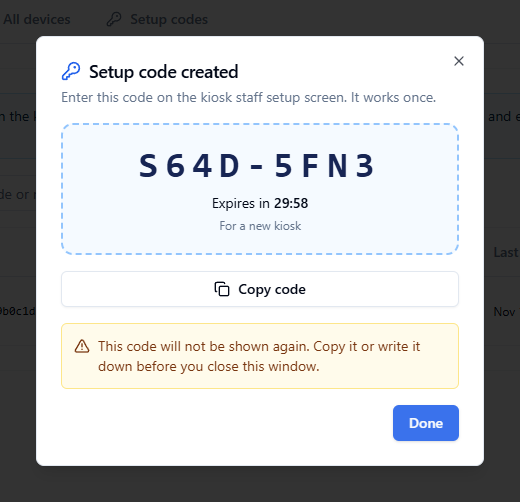
Select Create setup code. Leave For kiosk empty to register a new kiosk. A note helps the next person know what the code was for. Select Create code.
The code is shown one time. Copy it or write it down before you select Done. It works once, and it expires after 30 minutes.
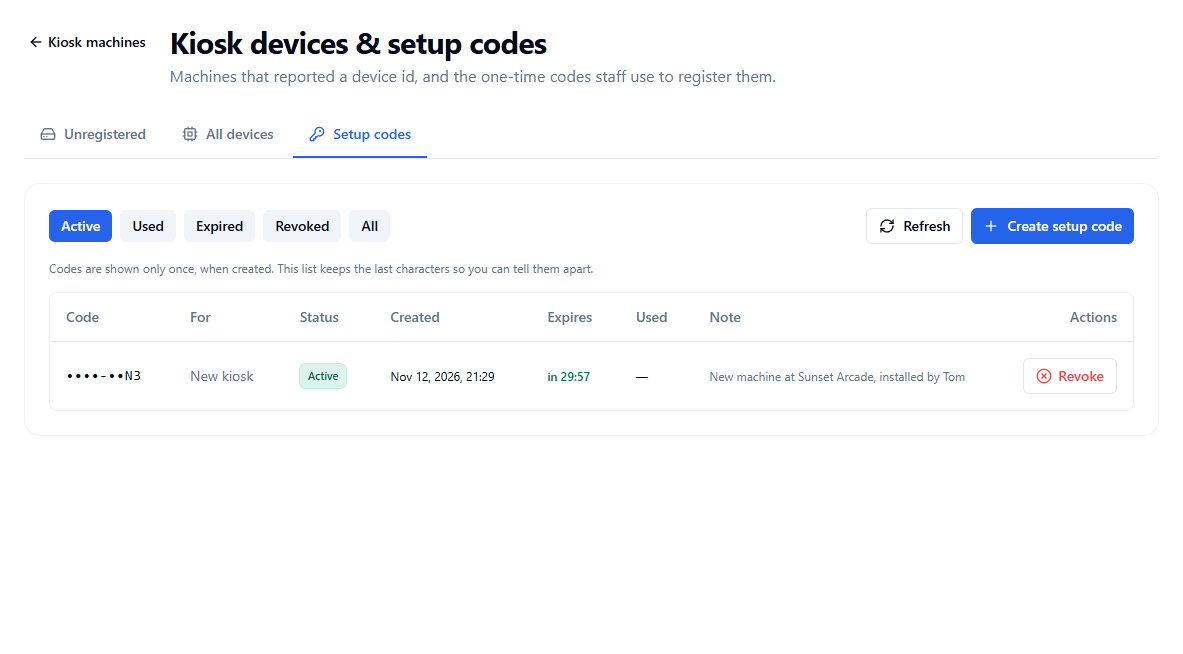
The Setup codes tab keeps the last characters of each code, who it was for, and whether it was used. A code that is no longer needed can be revoked there.
Step 3: Enter the codes on the kiosk
A staff member or technician does this at the machine. The kiosk must be online.
- Open the Kiosk setup screen on the kiosk. The Emergency code page in Admin describes how to open it.
- The screen says Staff only. Type the 6-digit emergency code and select Unlock. See Emergency code.
- Under Register this kiosk, type the Setup code from Step 2.
- Type a Code (2–32 letters, digits,
-or_, likeSA-LOBBY-01) and a Name (like "Sunset Arcade – lobby"). Note is optional. - Select Register this kiosk. The screen confirms with the new Kiosk ID.
The kiosk now appears on Kiosk machines. Its operator is No operator until you link it.
| If the kiosk says | What to do |
|---|---|
| The setup code is not valid or was already used | Create a new setup code |
| The setup code has expired | Create a new setup code. A code lasts 30 minutes |
| This Code belongs to another kiosk | Choose another Kiosk Code. Old codes stay reserved |
| Wrong code, on the Staff only screen | Ask for the current emergency code. It changes every 10 minutes |
| Too many wrong codes | Wait for the time shown, then try again |
Link a kiosk to a Shop
A kiosk is linked to a Shop through its operator:
Kiosk → Operator → Linked shop
So linking takes two steps. Create an operator for the Shop, one time. Then give each of the Shop's kiosks to that operator.
Step 1: Create an operator for the Shop
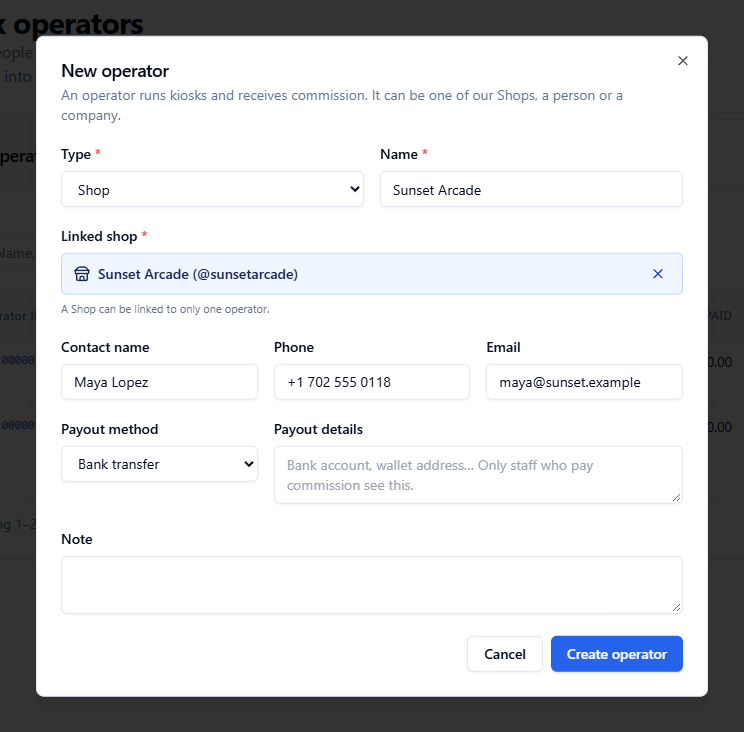
Open Kiosk Machines → Operators and select New operator.
- Set Type to Shop.
- In Linked shop, search the Shop by name or username and pick it. The Name fills in from the Shop. You can change it.
- Add the contact and the payout method if you have them.
- Select Create operator.
A Shop can be linked to only one operator. A Shop that already has one shows Linked to another operator and cannot be picked.
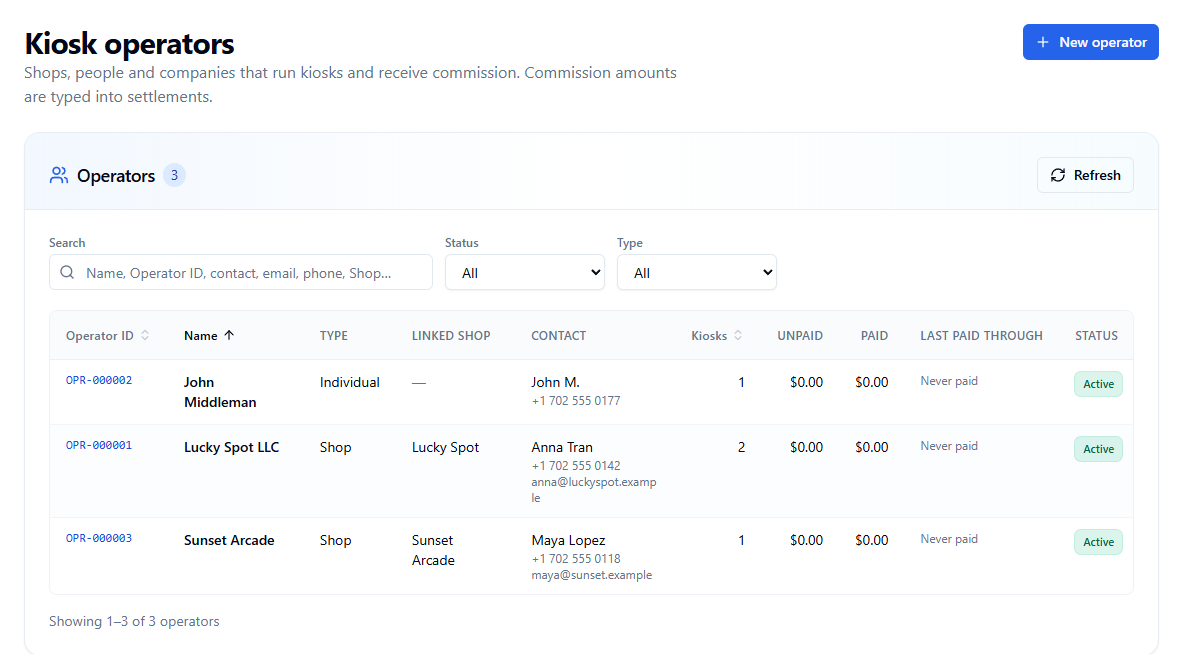
The Operators list shows each operator, its linked Shop, and how many kiosks it runs.
Step 2: Give the kiosk to the operator
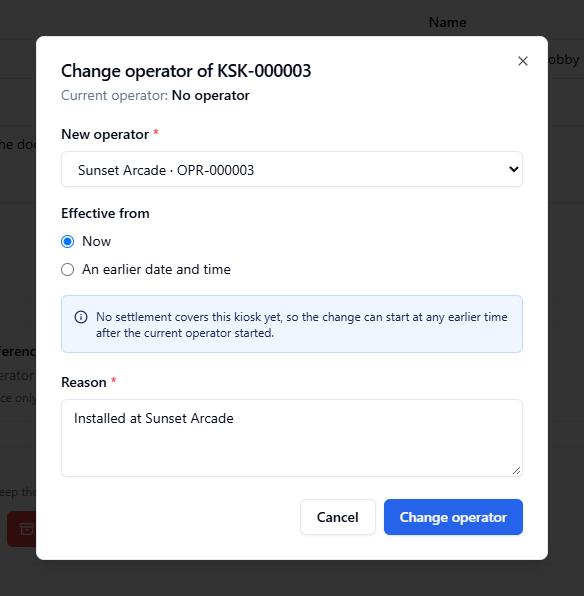
Open the kiosk from Kiosk machines, then open the Settings tab. Under Operator and reference rate, select Change operator.
- Pick the operator in New operator.
- Choose Effective from. Now starts today. An earlier date and time is for a kiosk that was already running for this operator before you recorded it.
- Type a Reason. It is saved in the kiosk history and the audit log.
- Select Change operator.
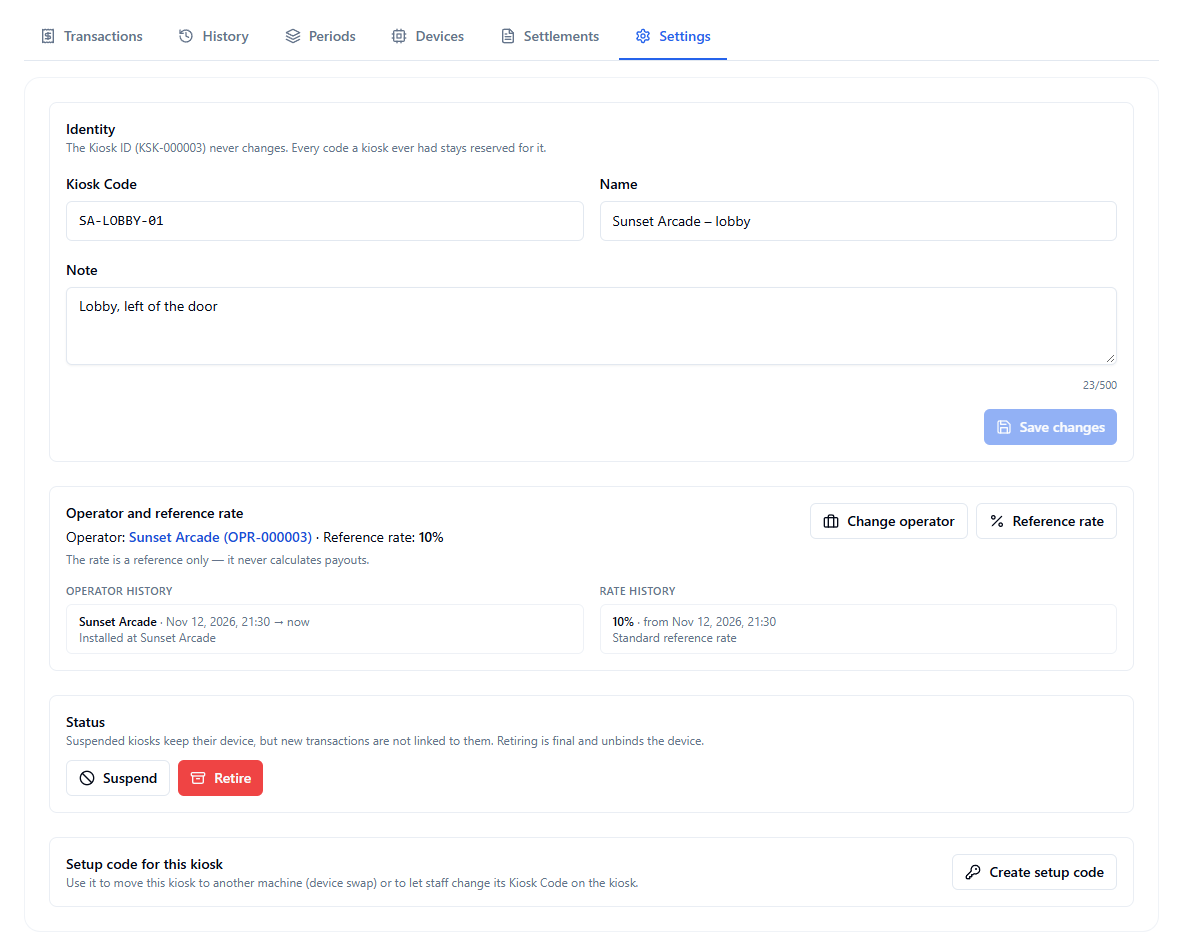
Reference rate is next to it. Set it if you want settlements to show a suggested amount. It is a reference only. It never calculates a payout.
After saving, Settings shows the operator, the rate, and the history of both.
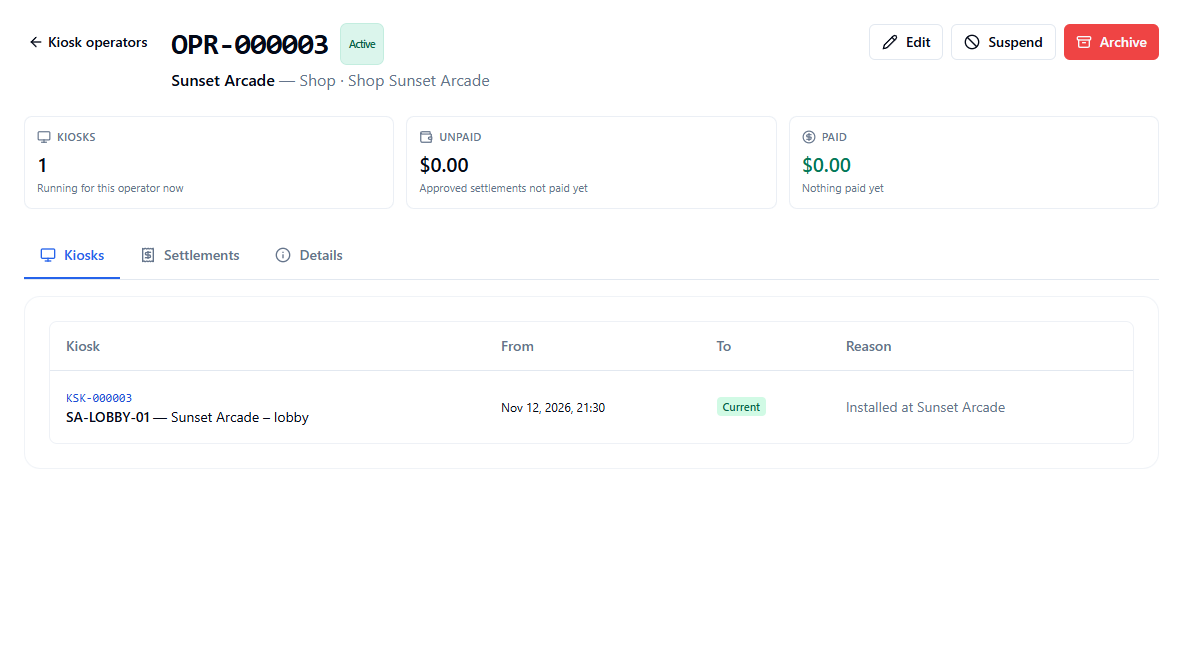
To check a Shop's kiosks, open the operator from Operators. The Kiosks tab lists every kiosk it runs, from when, and why.
What changes on the kiosk
Once a kiosk's operator has a linked Shop, the kiosk is for that Shop's players.
| Who signs in on the kiosk | What happens |
|---|---|
| A player of that Shop | Signs in as usual |
| A player of another Shop | Sign-in is refused. The message names the kiosk's Shop |
| A player with no Shop yet | Signs in, and joins that Shop |
| A new player who registers on the kiosk | Joins that Shop |
The rule covers every way to sign in: username, phone, and email. It applies on kiosks only. Signing in on the website from a phone or a computer is not affected.
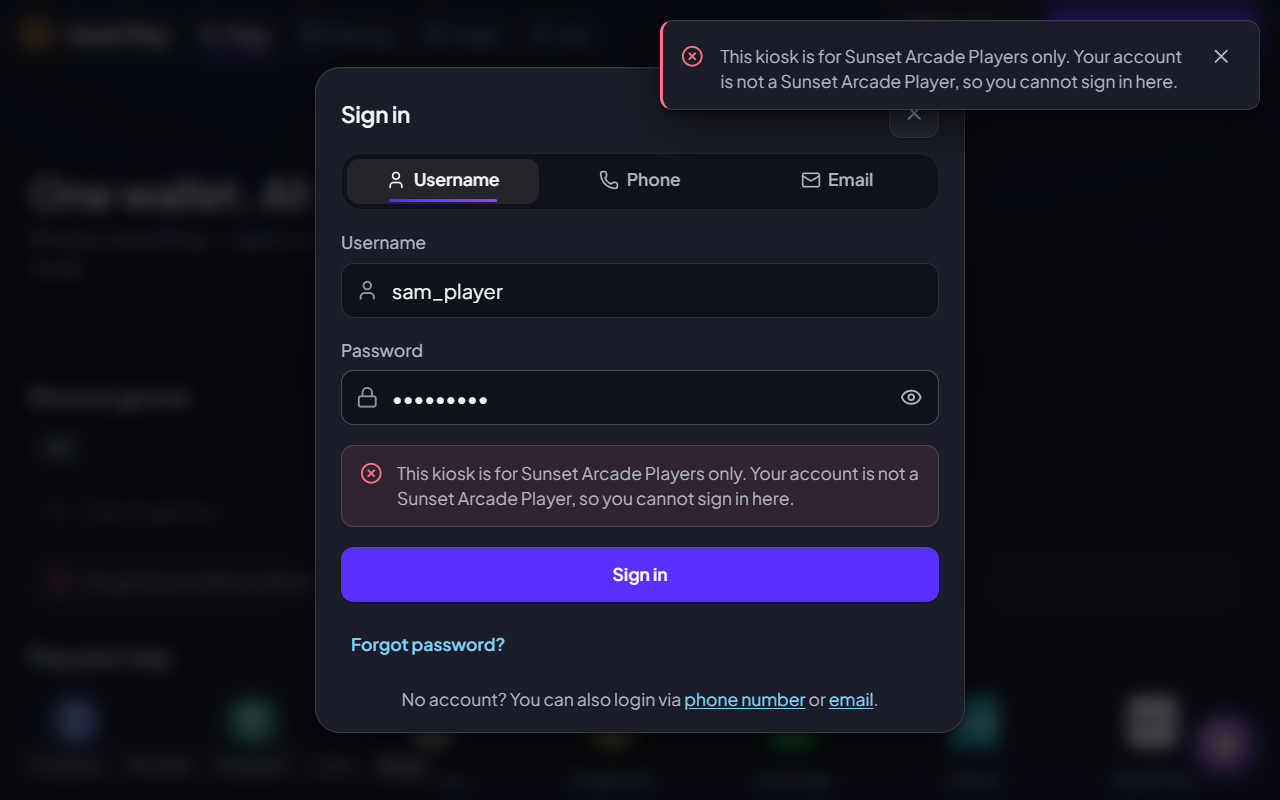
A kiosk with No operator, or with an operator that has no linked Shop, accepts every player.
Move a kiosk to another Shop
Use Change operator again and pick the other Shop's operator. From the effective time:
- Players of the new Shop can sign in on the kiosk. Players of the old Shop cannot.
- Money is counted for the new operator. Money before that time stays with the old one. See Periods.
To remove the link, pick No operator.
See the money
All kiosks
Kiosk machines starts with the period: Today, 7d, 30d, or Custom. Every amount on the page is for that period.
| Card | What it counts |
|---|---|
| Kiosks | Registered kiosks: active, suspended, retired |
| Online | Kiosks seen in the last 3 minutes |
| Offline | Kiosks that stopped reporting |
| Never seen | Registered, but no signal from the machine yet |
| Unregistered devices | Machines waiting in Devices & setup codes |
| Duplicate? | The same device ID seen from two networks in the last 24 hours. Worth a look |
| Kiosk money in / out / net profit | Totals of all kiosks |
| Unknown machine money in | Kiosk deposits that are not linked to a registered kiosk |
The list can be searched by code, name, Kiosk ID, old code, or device ID. It can be filtered by Status, Connection, and Operator, and sorted by a column. Paid through is the last date covered by a paid settlement. Export saves the list as a spreadsheet.
One kiosk
Select a kiosk to open its page. The top shows the operator, the reference rate, the device, the last activity, and past codes. Under it are the totals and a daily chart for the period.
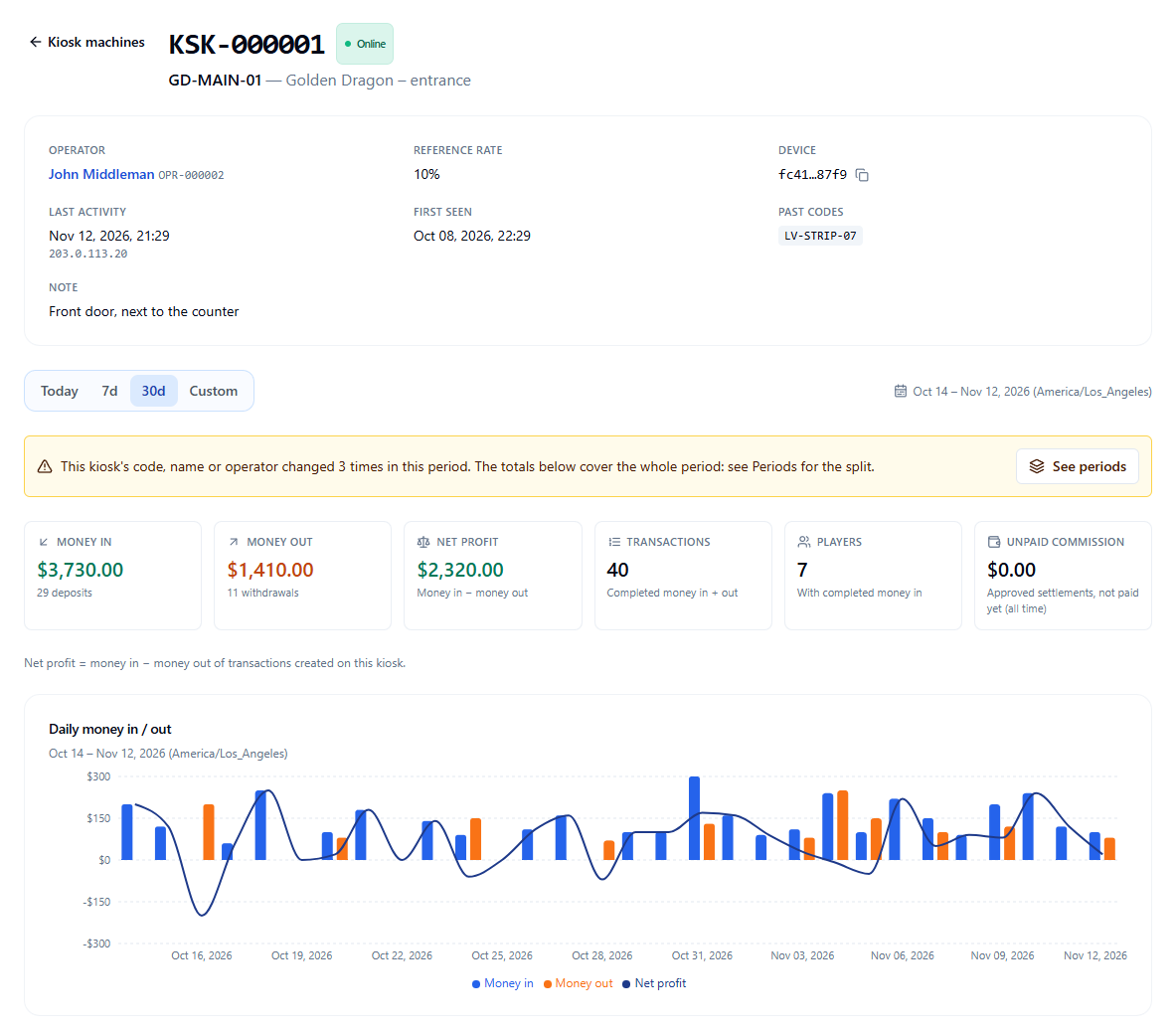
When the code, the name, or the operator changed during the period, a yellow note says so. The totals still cover the whole period. See periods opens the split.
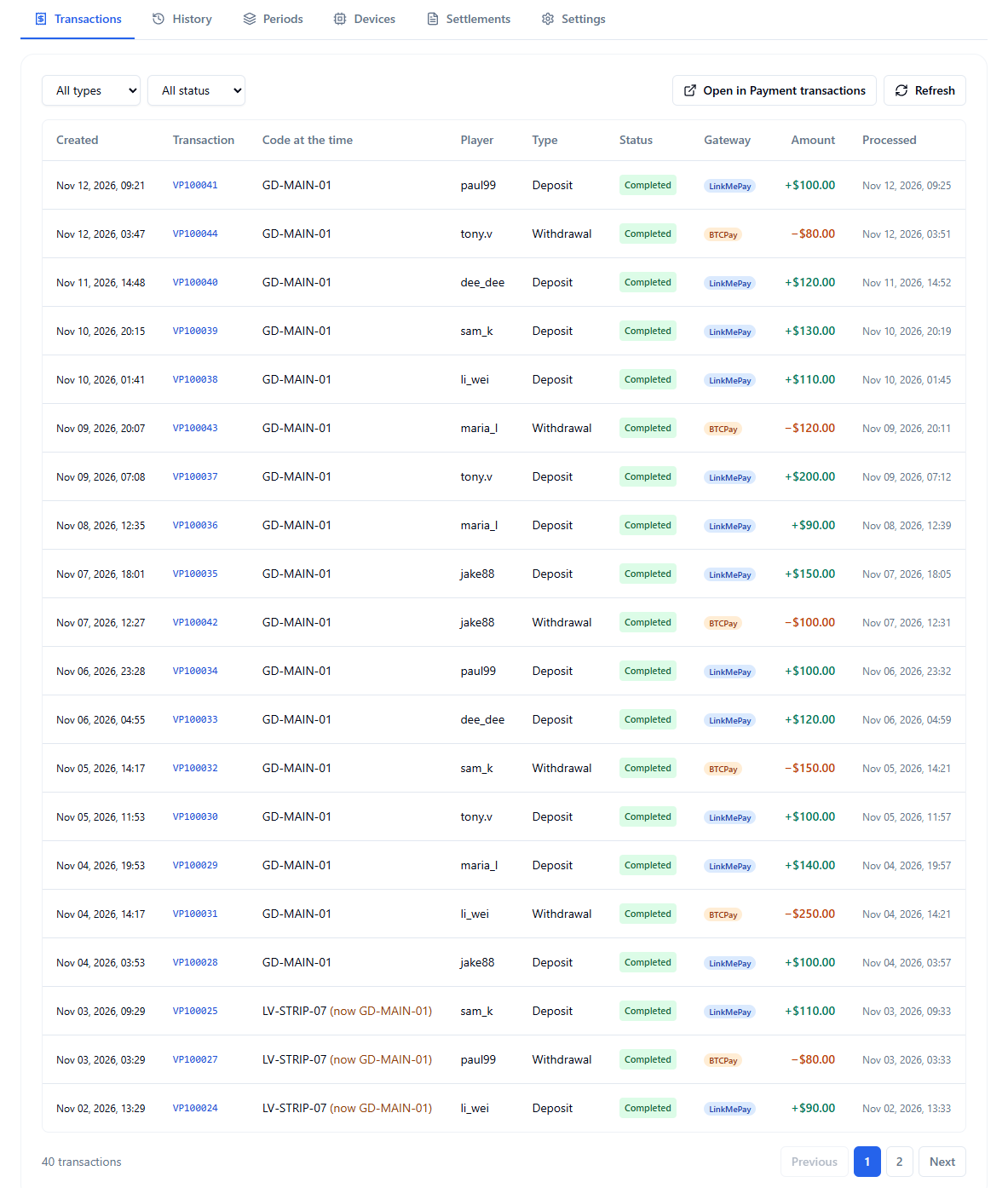
The tabs under the chart:
| Tab | What it shows |
|---|---|
| Transactions | Each deposit and withdrawal made on the kiosk, with the code the kiosk had at that time |
| History | Registration, renames, code and status changes, device changes, and admin actions, with who and when |
| Periods | The money split at every change of code, name, or operator |
| Devices | The machine bound to the kiosk now, and the machines it had before |
| Settlements | The settlements that include this kiosk |
| Settings | Code, name, note, operator, reference rate, status, and a setup code for this kiosk |
Periods: money before and after a change
A kiosk can get a new code, a new name, or a new operator. Periods keeps the money of each stretch apart, so it is clear what the kiosk earned under each identity.
Each row is one stretch. What changed says what started it, and who did it. The row marked Current is how the kiosk runs now. All time covers the kiosk's whole life. Selected period follows the period at the top of the page.
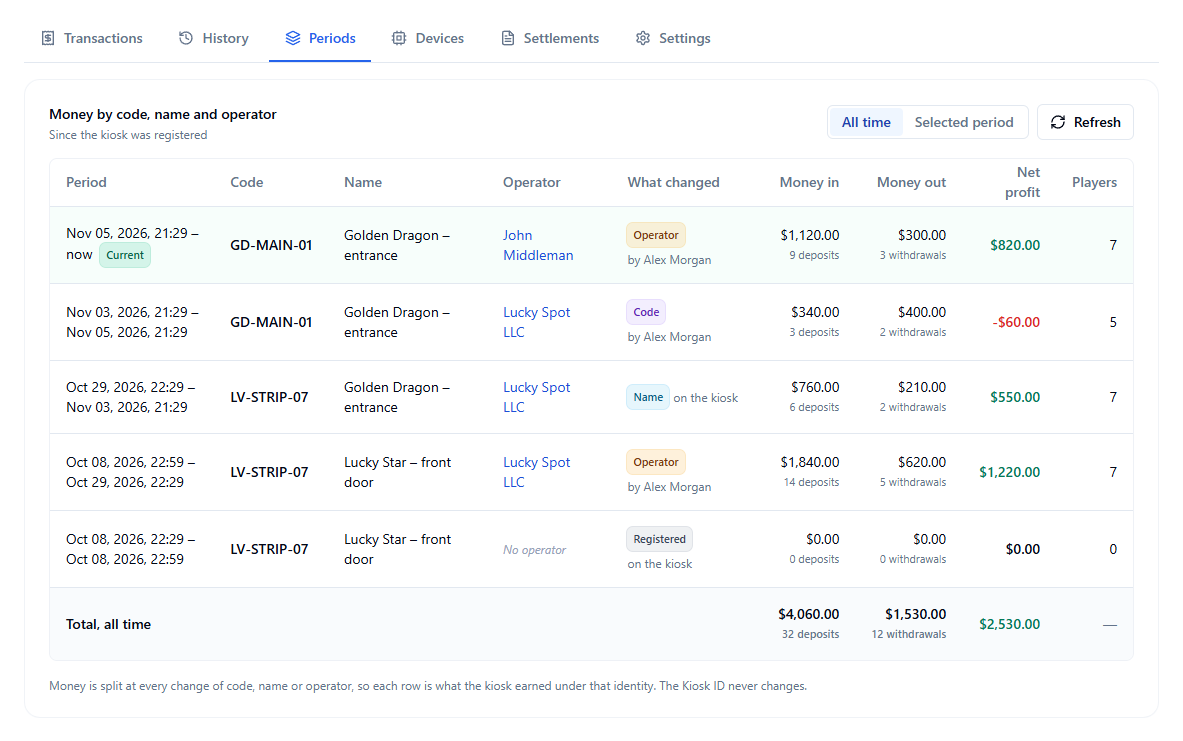
In this example the kiosk was renamed, then given a new code, then moved from Lucky Spot LLC to John Middleman. The money of each stretch has its own row. The Kiosk ID is the same in all of them.
History
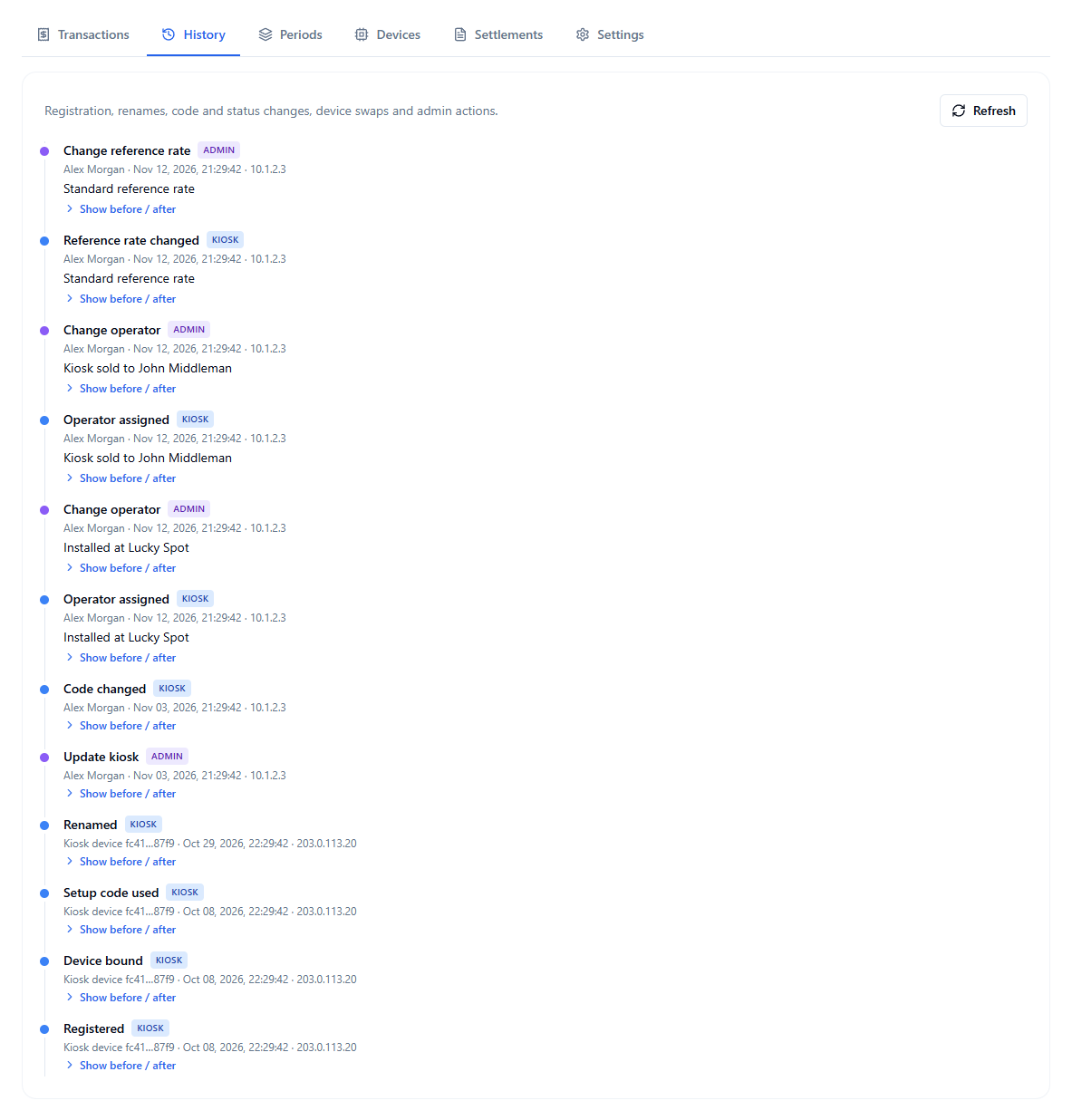
History is the record of what happened to the kiosk. Show before / after opens the old and new values of a change.
Change a kiosk
| To do this | Go here |
|---|---|
| Change the Kiosk Code, name, or note | Kiosk → Settings → Identity → Save changes |
| Change the operator or the reference rate | Kiosk → Settings → Operator and reference rate |
| Move a kiosk to a different machine | Kiosk → Settings → Setup code for this kiosk → Create setup code. Enter that code on the new machine. The kiosk keeps its ID, its history, and its money |
| Take a machine off a kiosk | Kiosk → Devices → Unbind device |
| Pause a kiosk | Kiosk → Settings → Suspend. The device stays, but new transactions are not linked to the kiosk until it is active again |
| Close a kiosk for good | Kiosk → Settings → Retire. This is final. It unbinds the device |
| Stop a machine from registering | Devices & setup codes → Block. Unblock allows it again |
Staff at the kiosk can also change the name and the note on the Kiosk setup screen. The name can change up to 5 times a day. Changing the code at the kiosk needs a setup code for that kiosk.
Every change asks for a reason where it matters, and is kept in History and in the audit log.
Record commission: settlements
A settlement is a statement for one operator and one period. The system shows the numbers. Staff type the amount, pay the operator by hand, and record that payment.
A settlement never moves money. It is a record of a payment made outside the system.
Step 1: Preview and create a draft
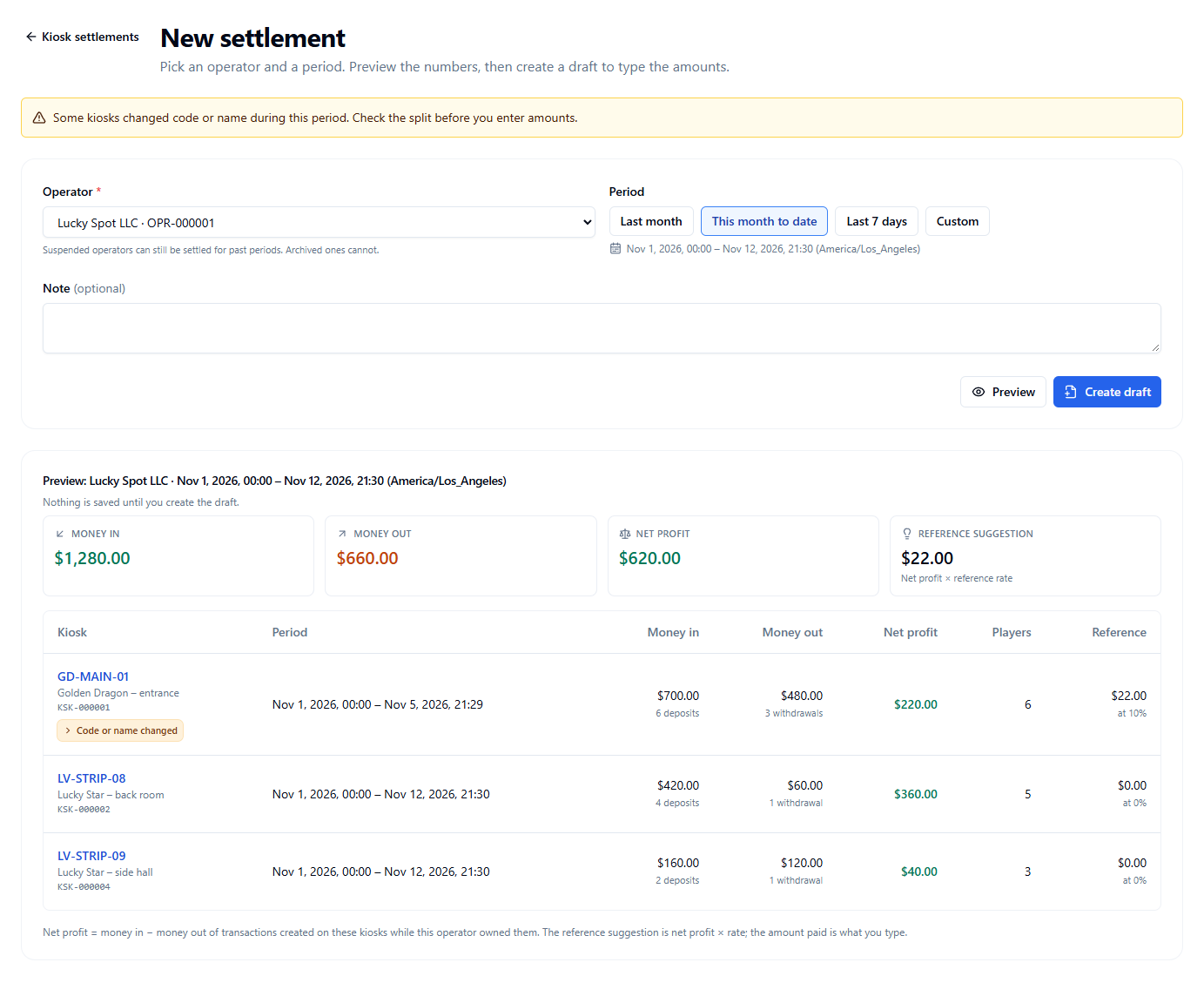
Open Kiosk Machines → Settlements and select New settlement.
- Pick the Operator.
- Pick the Period: Last month, This month to date, Last 7 days, or Custom.
- Select Preview. Nothing is saved yet.
- Select Create draft.
The preview has one line for each kiosk the operator ran in the period. A kiosk counts only for the time this operator had it. A line marked Code or name changed can be opened to see the split.
Time that is already in another settlement cannot be settled a second time. The page says so when you create the draft.
Step 2: Type the amounts
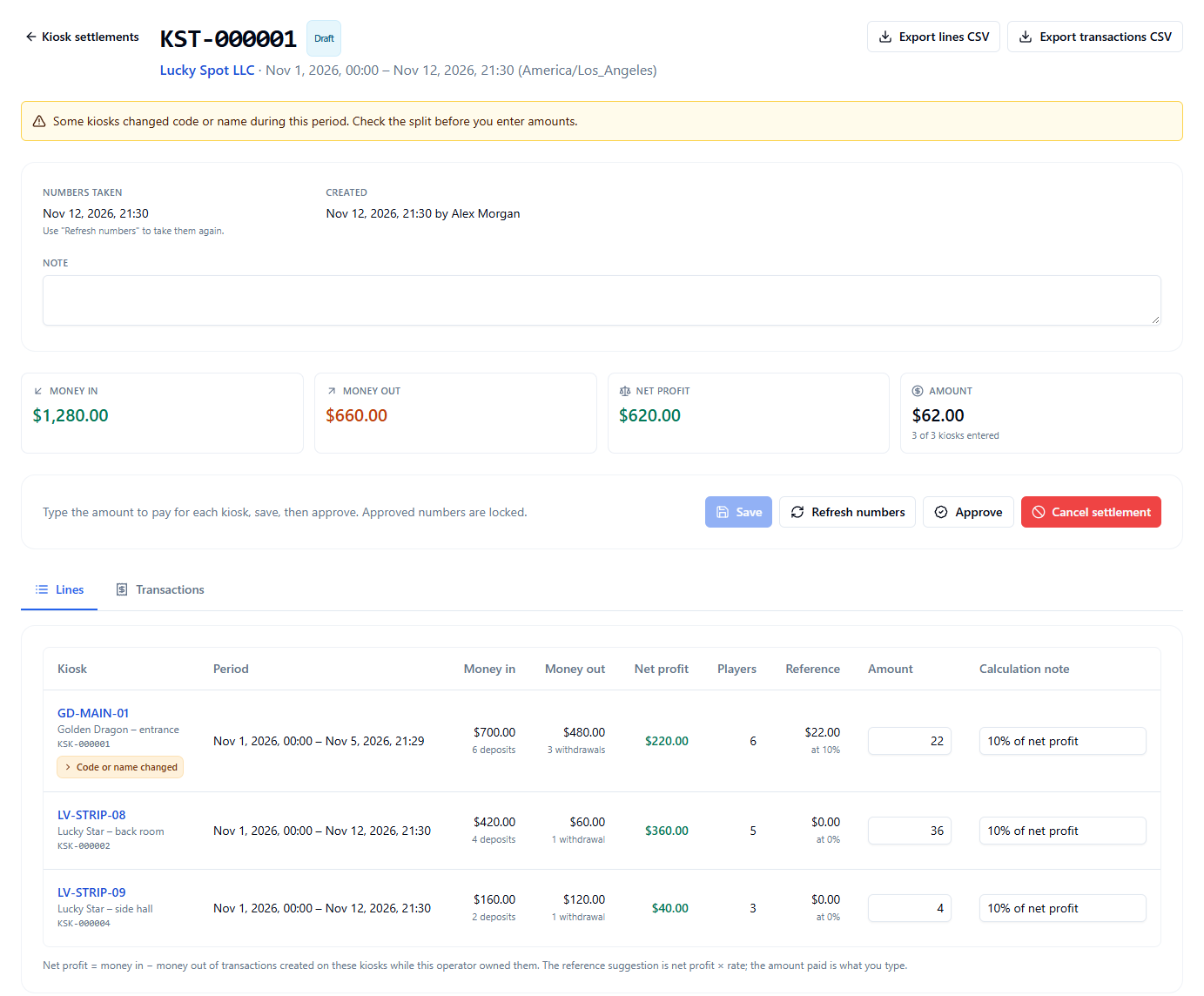
On the draft, type an Amount for every kiosk. 0 is allowed. Reference is net profit × reference rate. It is a suggestion. Calculation note is a place to say how the amount was worked out.
Select Save. Refresh numbers takes the numbers again and keeps what you typed.
Step 3: Approve
Select Approve, then Approve settlement. The numbers and the amounts are now locked. An approved settlement can still be cancelled until it is marked as paid.
Step 4: Pay, then mark as paid
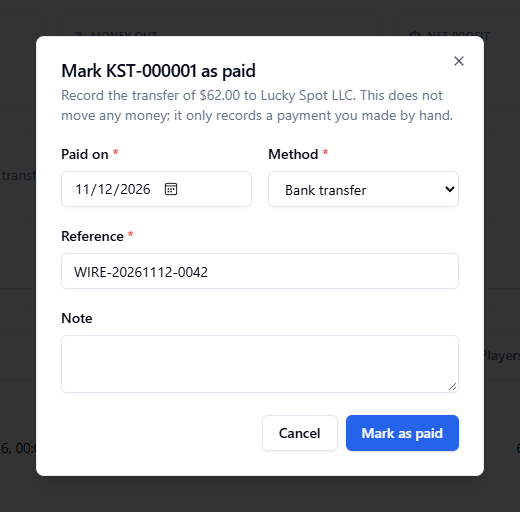
Pay the operator the usual way. Then select Mark as paid and fill in Paid on, Method, and Reference (a bank transfer ID, a transaction hash, or a receipt number).
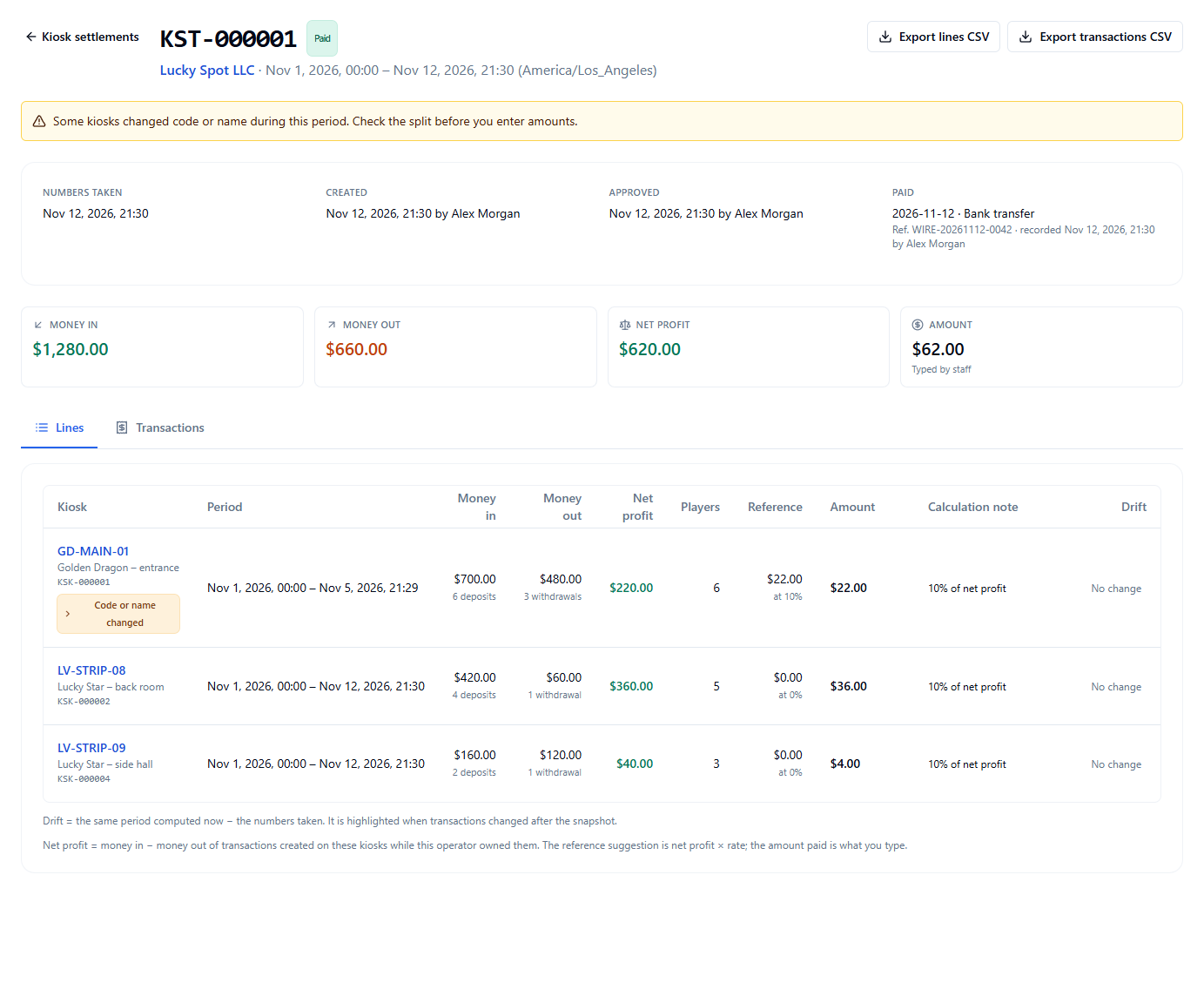
The settlement shows who created it, who approved it, and the payment. Export lines CSV and Export transactions CSV save the figures and the transactions behind them. Drift compares the numbers taken with the same period computed now. It is highlighted when transactions changed after the numbers were taken.
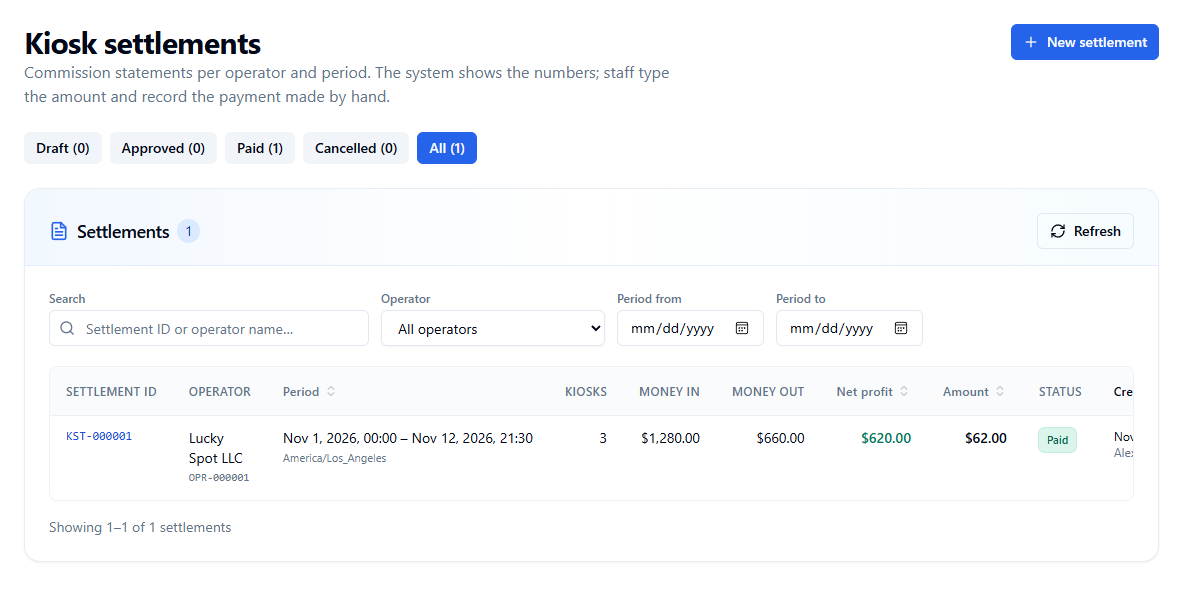
The Settlements list groups them by status: Draft, Approved, Paid, Cancelled.
On an operator's page, Unpaid is the total of approved settlements that are not paid yet. Paid is the total paid.
Emergency code
Kiosk Machines → Emergency code shows a 6-digit code that a technician types on a kiosk. It is used in two places:
- On the staff PIN pad of the kiosk, in place of the staff PIN.
- On the Staff only screen that protects Kiosk setup.
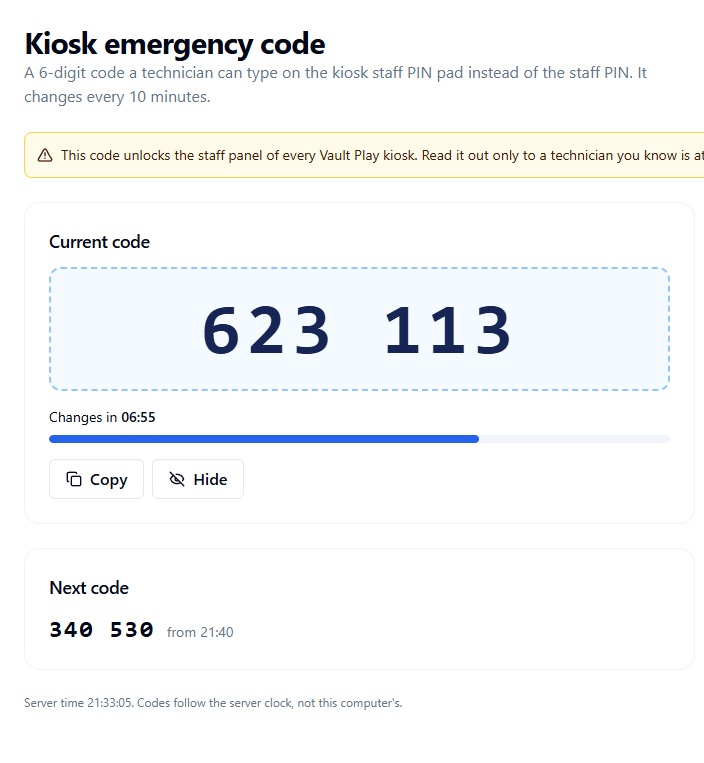
The code stays hidden until you select Show code. The page then shows the current code, the time left, and the next code. The steps for the technician are on the same page.
| Rule | Detail |
|---|---|
| It changes | Every 10 minutes. Close to a change, the next code works too |
| It is the same for all kiosks | The code opens the staff screens of every Vault Play kiosk |
| It is recorded | Each time a code is shown is written to the audit log, with who and when. The code itself is not stored there |
| Wrong tries | Five wrong tries lock the screen on that kiosk for 5 minutes |
Read the code out only to a technician you know is at a kiosk. Do not send it in a group chat.
Quick answers
A new machine does not appear under Unregistered. The kiosk app must be running and online. Select Refresh. Check All devices in case the machine is blocked or already bound to a kiosk.
A player says the kiosk does not let them sign in. Read the message. If it names a Shop, the kiosk belongs to that Shop and the player belongs to another one. Check the kiosk's operator and its linked Shop.
A kiosk shows Offline. The machine has not reported for more than 3 minutes. Check power and network at the location.
The totals look different after a rename. They are not lost. The Kiosk ID is the same. Open Periods to see the money before and after the change.
The operator changed in the middle of the month. Create one settlement for each operator. Each one counts only the time that operator had the kiosk.
A settlement was approved with a wrong amount. Select Cancel settlement before it is marked as paid, then create a new one for the same period.